
- English
- English
Appearance
Time Track Central uses Business Central's standard Timesheets, but makes entering and submitting hours much faster.
Note: Time Track Central only tracks project-related hours and absences. Other activity types aren't supported.
To write hours: book them through the smart editor or quick editor, then submit a line or the whole timesheet for approval. Depending on the project's approval flow, hours are then either approved by an hours controller, approved automatically on submission, or bundled into a work report for customer approval — see Project Types: Approval Flow.
Note: Mileage is recorded separately — see Expense Claims: Recording mileage.
To write hours on a project, all of the following must be true — see BC: Making a task line available for time booking for the full reference:
To mark a task line Active:
Employees need a timesheet before they can book hours. See BC: Setup → Users for generating timesheets automatically ahead of time, or trigger BC's Create Timesheets function manually.
Timesheets are editable by default; an admin can close one from BC's week control screen to block further changes.
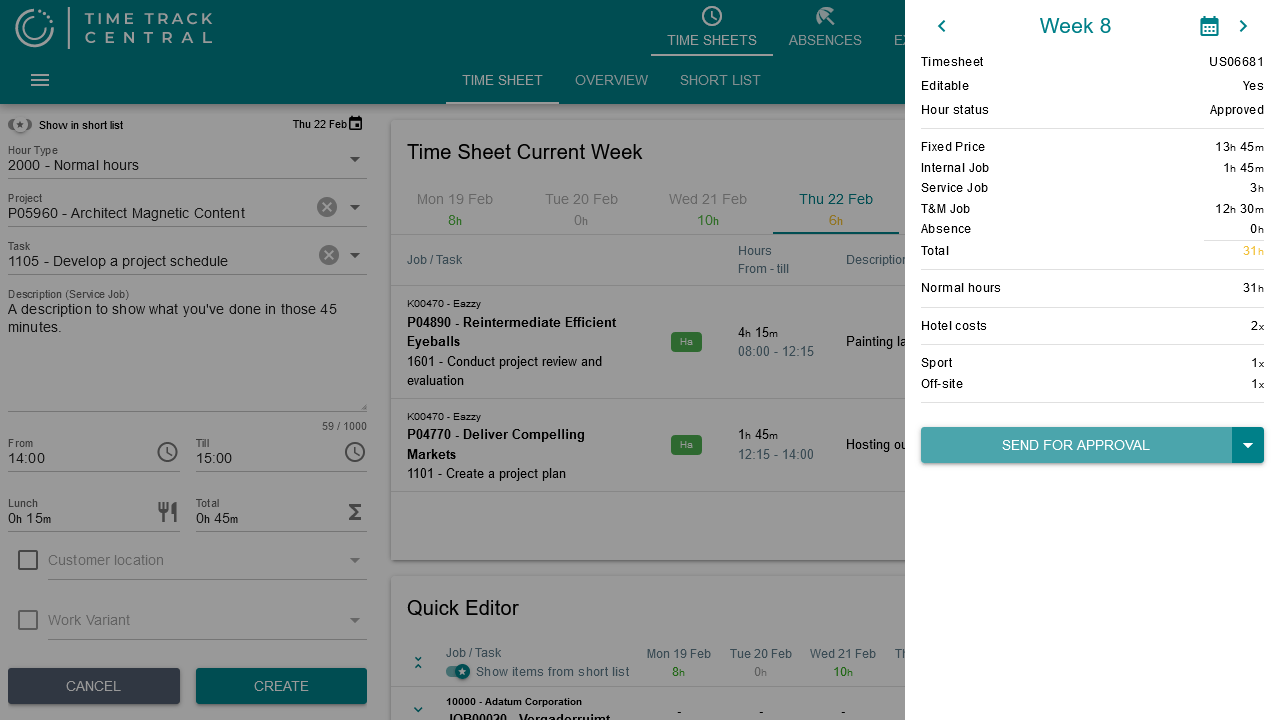
This only works while the line is Open (Ho) or Rejected (Hr). If the line is Submitted, reopen it yourself first: press the three-dot menu on the line and choose Reopen line.
In the details screen, press the three-dot menu on the line and choose Delete line. This only works while the line is Open (Ho) or Rejected (Hr).
Day registrations are allowances paid to the employee — for example overnight, lunch, or home-working allowances. Select them under the day in the details screen.
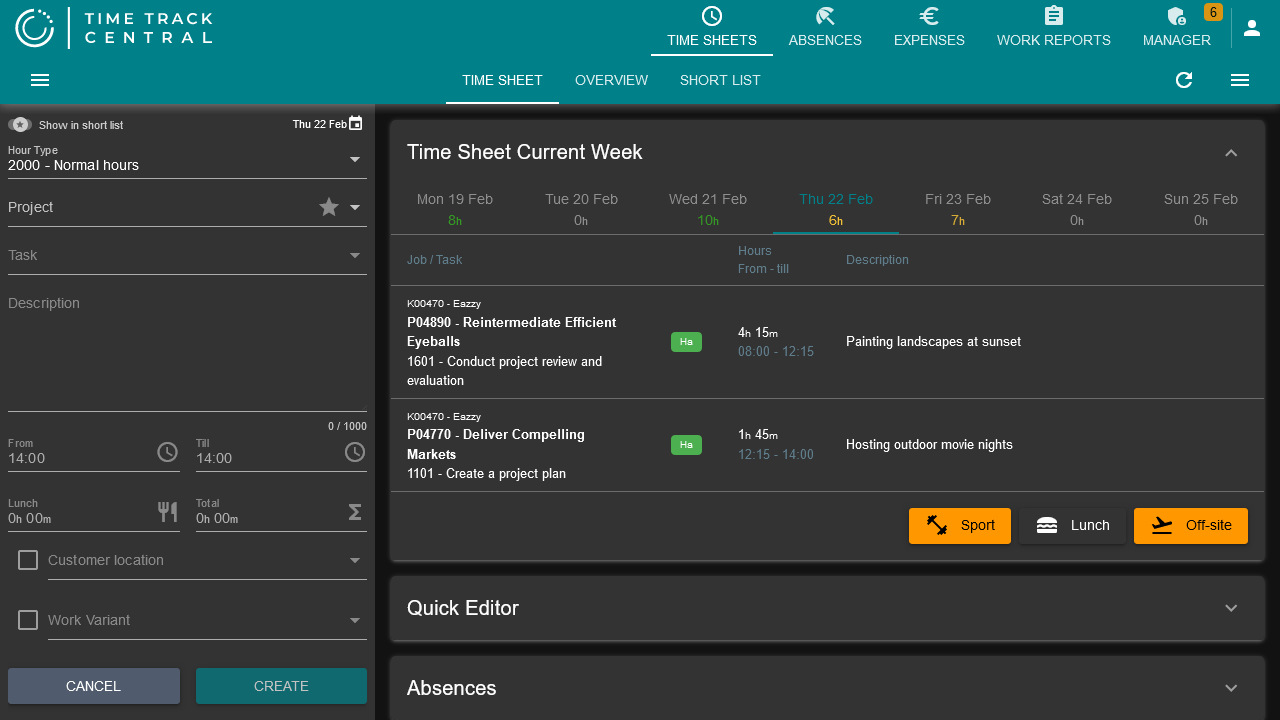
Note: Day registrations aren't automatically charged to customers. Use work variants for that instead.
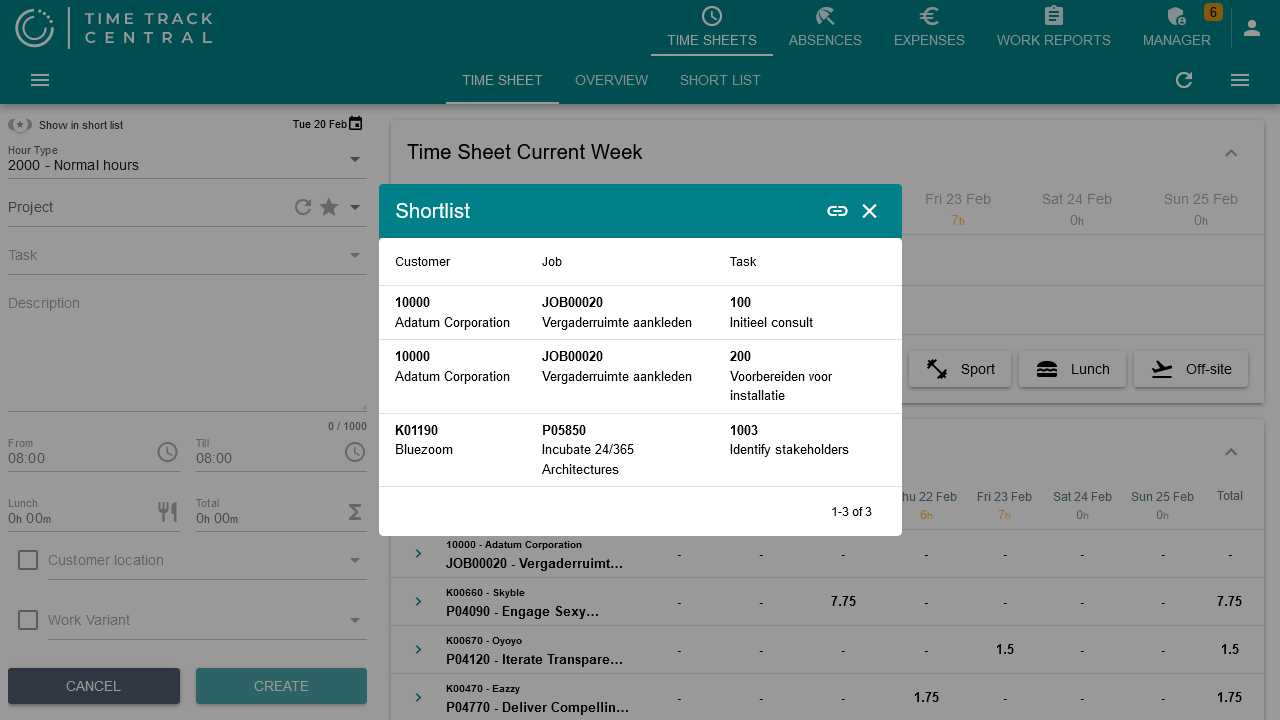
The Short List can be used to make the projects on which you write the most hours accessible as a quick choice. When entering hours you can enable the Add to short list toggle next to the project/task fields in the smart editor. After saving the hours, that project/task combination shows up on the Short List tab, and also under the star icon when picking a project in the quick editor. You can manage (and purge) your short list from the Short List tab.
You can submit for review by line or as a whole timesheet. Submitting a single line can be useful when you want to charge those hours to the customer sooner.
If you have written open or rejected hours in the wrong week, click the arrow next to Submit for approval in the summary section and choose Move to previous week. This moves those lines from the current week back to the previous week.
If you want to repeat last week's lines in the current week, click the arrow next to Submit for approval and choose Copy from previous week. This is only available while the current week is still empty.
If you've created project planning in BC for a resource, you can copy those planned lines into the timesheet: in the summary section, click the arrow next to Submit for approval and choose Create lines from project planning.
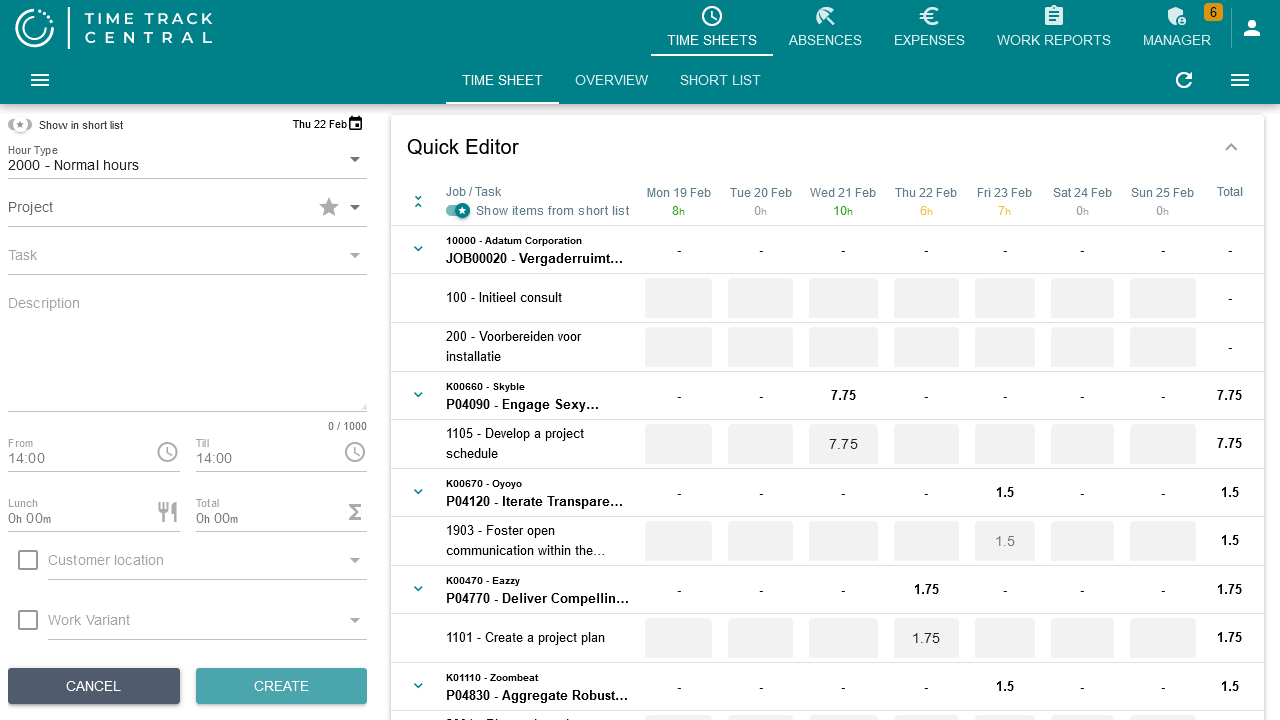
If a project requires writing on multiple days and no comments to be entered, you can use the quick editor. This allows you to quickly enter your (total) hours over several days.
Auditors can post comments on your timesheet, shown via the comment indicator on the line — see Screen Division: Labels for what the badge looks like. Open the comments to read and respond.
Hour types are associated with payroll codes and can include overtime rates. Manage them in BC under Payroll Codes, using type Project.
Time Track Central extends standard BC with multiple project types, each offering different settings for how hours are processed on projects. Manage them in BC under Project Types.
A project type's approval flow has three options — see BC: Project Types — Approval Flow for the full picture:
Determines how hours post to the project — standard Business Central functionality: Budget, Both Budget and Billable, or Billable.
Determines how overtime is calculated — see BC: Project Types — Overtime Type:
If Chargeable is off, the unit price is forced to 0, regardless of the resource's normal rate.
If Work Variant Mandatory is on, employees must select a work variant before they can submit a line against a project of this type.
Sets a minimum number of characters required in a line's description before it can be submitted. Useful, for example, when work reports are used, since the description often ends up on the customer-facing report.
You can set up multiple locations per customer, each with its own travel distance and/or travel time charged to the customer — see BC: Travel on Ship-to Address for the full field reference.
Overtime schedules can be set up per customer, customer group, or project. Based on the day, start/end time, and (optionally) work type, a surcharge is calculated automatically. See BC: Overtime List for the full field reference.
Note: Start and end times may go past midnight (0:00).
The surcharge applies on top of the normal rate. A maximum duration can trigger the next rate once exceeded — for example, someone working 7:00 AM–5:00 PM with a half-hour break (9.5 hours worked) would have the 1.5 hours beyond 8 hours charged at the 25% overtime rate.
A work variant can bundle one or more items, or simply apply a work type to the line. It's posted to the project when hours are processed (as timesheet proposal lines). See BC: Work Variants for the full field reference.
A work variant can include multiple items; billable items use the standard price lists. For each item, specify the quantity and which project task number it should be booked to.
Day registrations have a wage (salary) code, so they're included in the payroll export. Manage them in BC under Payroll Codes, using type Day.
Note: Fees for day registrations must be linked in your payroll administration program.
Time Track Central uses Business Central's standard sales price lists. We recommend hierarchical price lists when you have price agreements that apply across groups of customers.
Once hours are approved, process them onto the project: