
- English
- English
Appearance
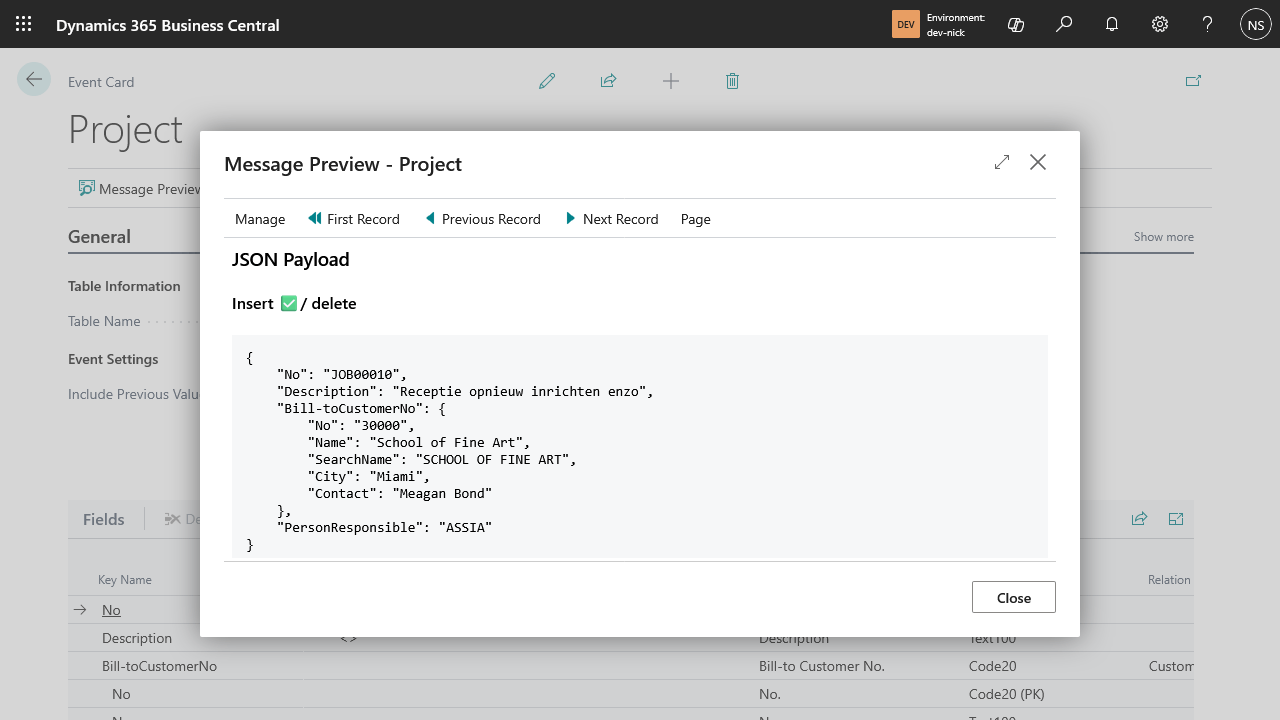
Available from both the Event Tables list and an individual Event Card, Message Preview shows exactly what would be sent for a real record — without actually sending anything.
It shows:
before/after comparison, if Include Previous Values is on for that table.Use the First Record / Previous Record / Next Record actions to page through actual records in the underlying table and see how the payload changes from one record to the next — handy for confirming filters and related fields behave the way you expect across a range of real data, not just one example row.
On Event Bridge Setup, Send Test Payload sends one dummy event (a fixed {"Test Message": "Hi!"} payload, event type insert, table name Test) straight to the configured endpoint. It's a quick way to confirm your endpoint URL and authorization are correct end to end, without needing any table registered yet.
If an event fails to send, Business Central shows one of these:
<status>: <reason>." — The endpoint was reached, but rejected the request. The status code and reason phrase are your best lead — a 401/403 usually points at Authorization, anything else at the receiving system's own logs.Failures surface as a Business Central notification on the session of whoever's action triggered the event — not necessarily an admin, and not in any central log inside Business Central. If a routine user's edit to a registered table happens to fail delivery, they're the one who sees the notification, and it may mean nothing to them.
If you're relying on Event Bridge for something operationally important, monitor delivery from the receiving side (RabbitMQ or your API endpoint's own logs) rather than expecting failures to be reported back to you from inside Business Central.
Message Preview and Send Test Payload need the same Event Bridge Admin access required for Setup and Event Tables — see Licensing and access.